Starting with DTF printing? One of the first things you’ll need to learn is how to create your own DTF transfer designs.
Good designs are key to getting clear, colorful, long-lasting prints on shirts, bags, hoodies, and more.
In this easy guide, we’ll walk you through how to design for DTF transfers, even if you’re brand new to it.
🧩 What Makes DTF Designs Different?
DTF stands for Direct-to-Film in printing. To get good results, your design needs to be:
- High quality
- Sized correctly
- Saved in the right format
- Ready for white ink (if printing on dark shirts)
Don’t worry—this guide explains it all step by step.

🛠️ Step-by-Step: How to Design a DTF Transfer
✅ 1. Choose a Design Program
Use any of these programs to create your design:
| Tool | Good for | Notes |
|---|---|---|
| Photoshop | Full-color photos or art | Great for advanced edits |
| Illustrator | Logos and clean graphics | Vector format, very sharp |
| Canva | Simple layouts and text | Beginner-friendly |
| CorelDRAW | Text-heavy layouts | Popular in some countries |
🧠 Tip: Most DTF printers work best with files made in Photoshop or Illustrator.
✅ 2. Set the Right Canvas Size and Quality
Before you design anything, adjust your settings:
- Size: Match the size of your shirt print (like 10×12 inches)
- Resolution: Set to 300 DPI (dots per inch) so the print is sharp
- Color Mode: Use RGB for better color results
- Background: Use transparent or black (not white)
✅ 3. Add Your Artwork
Now, create or import your design. Keep these tips in mind:
- Use bright, bold colors
- Avoid soft gradients or blurry edges
- Make sure the text is easy to read
- Clean up any extra layers you’re not using
✅ 4. Add a White Underbase (If Needed)
If you’re printing on dark-colored fabric, you need a white ink layer to help colors stand out.
Some printers or RIP software will add the white automatically.
If not, you can:
- Copy your design
- Fill it with white
- Place it behind your original design
- Label it clearly (like “White Base”)
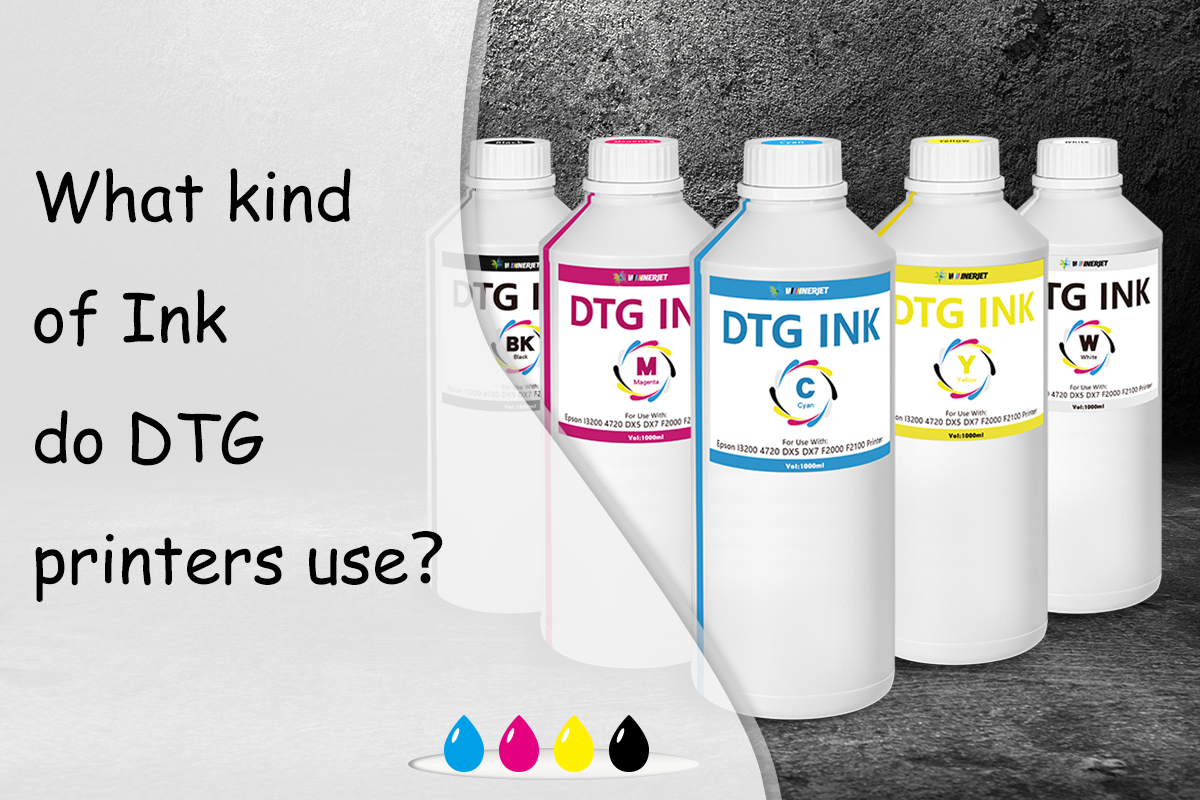
🏆 Winnerjet DTF ink prints smooth white layers that help your colors look bright, even on dark shirts.
✅ 5. Flip the Design (Mirror It)
In DTF printing, the image is pressed face-down onto the fabric.
So, you usually need to mirror the image horizontally, especially if it has text.
Check your printer software—some do this for you. If not, flip it in your design program.
✅ 6. Save the File the Right Way
Save your design in a format that works well with DTF printing:
- PNG (with transparent background) – most common
- TIFF – for big or detailed designs
- PSD – if you’re using Photoshop and layers
- PDF – good for text and vector art
🛑 Avoid JPG or low-res files—they may print blurry.

✅ Quick Design Checklist
Before printing, double-check these:
✔ Design size is correct
✔ Resolution is 300 DPI
✔ Colors are in RGB mode
✔ Background is transparent
✔ Image is mirrored (if needed)
✔ White under base added or handled by software
✔ File is saved in PNG, TIFF, PSD, or PDF
🚫 Common Mistakes to Avoid
- Using a blurry or small image
- Forgetting to flip the design
- Saving in CMYK color mode (can change your colors)
- Not adding white ink for dark fabrics
- Printing straight from Canva without resizing or exporting correctly
🏆 Why Use Winnerjet Ink for Your DTF Designs?
Designing well is only half the job. You also need supplies that make your artwork look great on fabric.
Winnerjet DTF inks and DTF films are perfect for beginners and small businesses:
- ✅ Bright colors and sharp edges
- ✅ Smooth white ink with no clogging
- ✅ Works with most printers and software
- ✅ Affordable and reliable
🎯 Need a sample? Contact Winnerjet to test it yourself before you order.
🧾 Final Thoughts
Designing for DTF printing is easy once you know the basics. With the right setup and a few simple steps, your prints will look professional and last long.
To sum up:
✅ Use the right software
✅ Set the right size and quality
✅ Add white ink if needed
✅ Save your file correctly
✅ Use good materials like Winnerjet ink and film
👉 Ready to bring your designs to life? Try Winnerjet’s beginner-friendly DTF supplies and get a sample today.
❓FAQs – Designing for DTF Printing
Can I use Canva for DTF designs?
Yes, but export your design as a high-res PNG and make sure the size and color are correct.
Do I need to add white ink?
Only if your software doesn’t do it for you, some RIP software adds a white under base automatically.
Should I use RGB or CMYK?
Use RGB. It works better with most DTF printers and keeps your colors bright.
What resolution should I use?
Always use 300 DPI. This gives you clear, high-quality prints.
What file types are best?
PNG, TIFF, PSD, or PDF. They hold your design details and colors better than JPG.