Running out of ink in the middle of an urgent print job is a common frustration for home offices and print shops alike. Whether you are using a standard desktop printer or maintaining a busy workstation, regularly checking your ink levels helps prevent printhead dry-firing and poor output quality.
Below is a complete walkthrough on how to check ink levels on an Epson inkjet printer via Windows, along with an important technical note on how Epson actually calculates remaining ink.
Reference video: How to Check the Ink Level of an Epson Inkjet Printer
1. Prerequisite: Install the Official Epson Driver
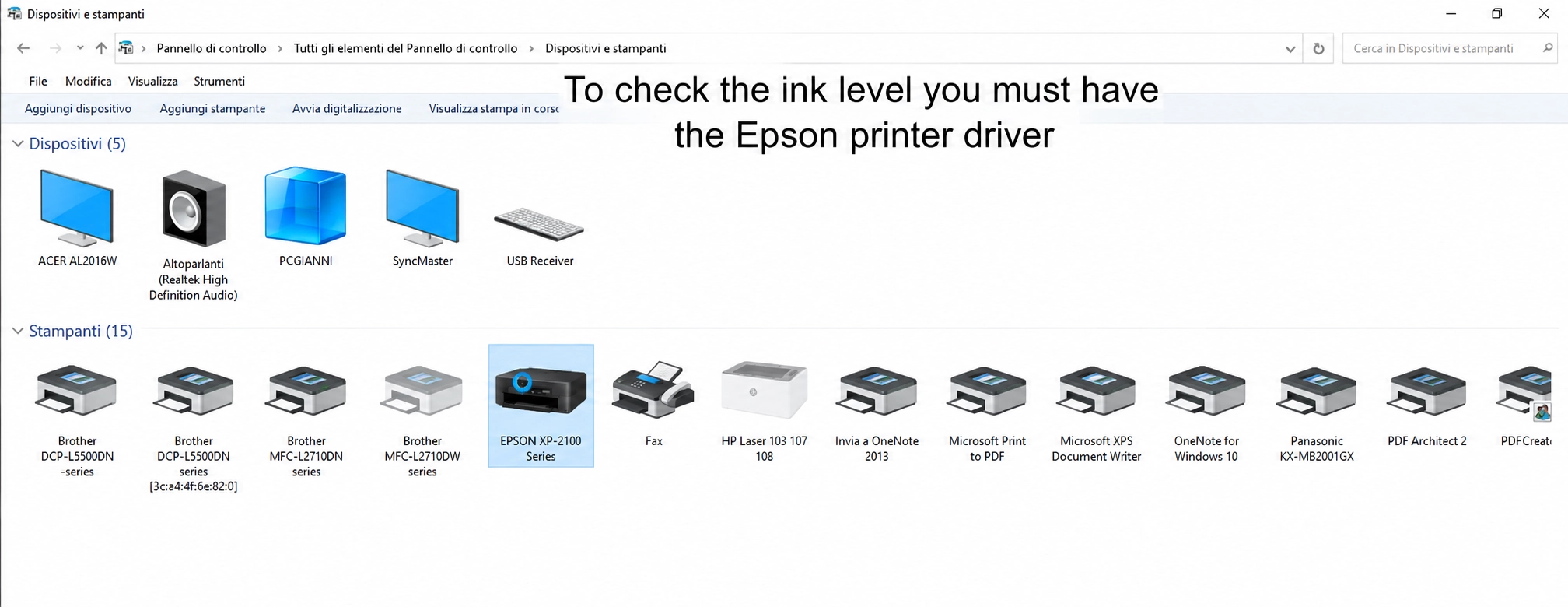
Before you can monitor ink supply, your computer must have the official Epson printer driver installed [00:05].
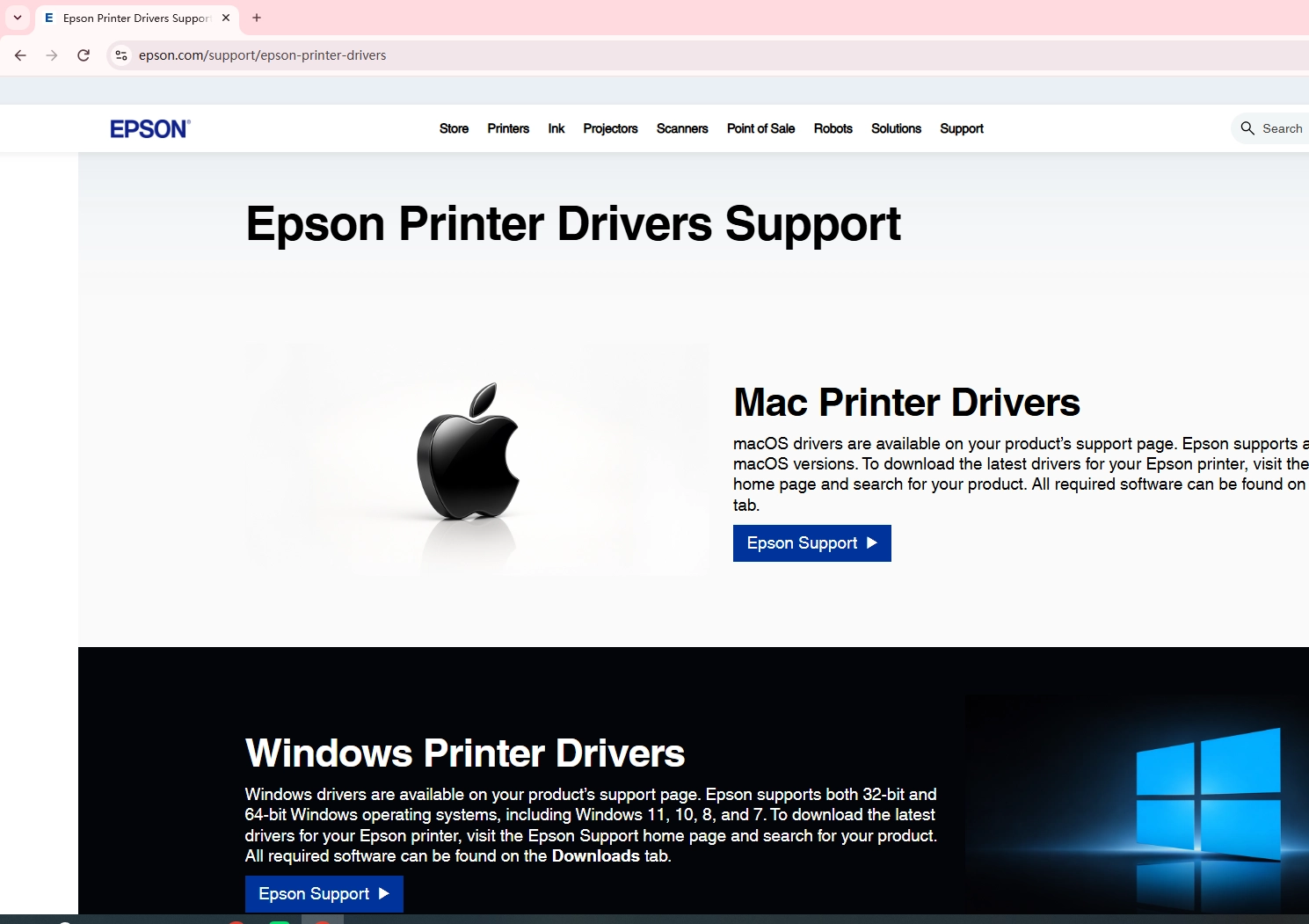
Generic operating system drivers (such as basic Windows plug-and-play drivers) only provide standard printing commands and usually lack the proprietary utilities required to query ink telemetry. If you haven’t installed the full driver package yet, visit the official Epson support website, search for your printer model, and download the recommended driver and utility installer [00:11]. Make sure the printer is powered on and connected via USB or Wi-Fi before continuing [00:25].
2. Method 1: Check via Windows System Settings
This method is ideal when you want to inspect printer health without opening any documents.
- Open the Start Menu and click the Settings gear icon (or press
Win + I). - Go to Devices > Printers & scanners [00:25].
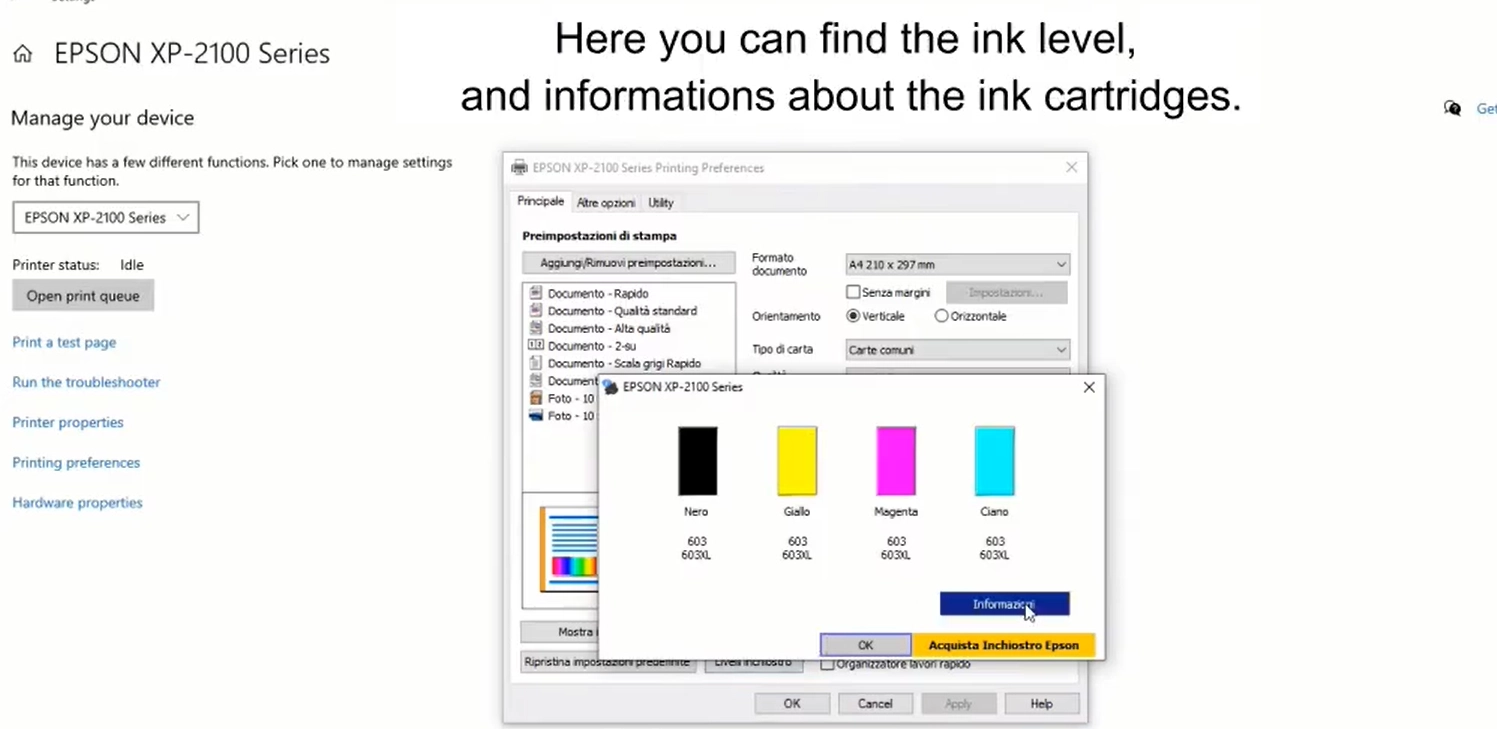
- Click on your Epson printer model and select Manage [00:35].
- Choose Printing preferences [00:40].
- Look for the Ink Levels tab/button (or find it on the main driver screen) to view the current graphical level of each cartridge [00:45].
3. Method 2: Check Directly from Any Application (Word, PDF, etc.)
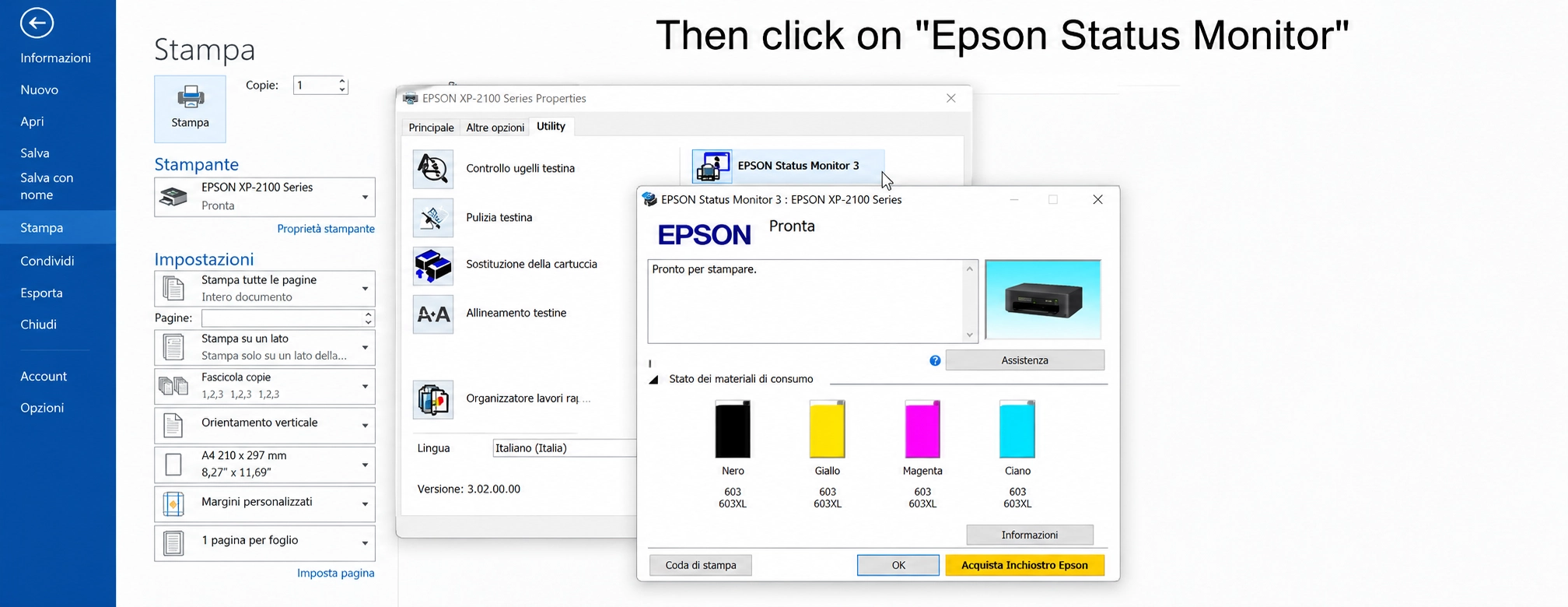
If you are already working inside an application like Microsoft Word, Excel, or Adobe Acrobat, you can check your ink levels directly through the print dialog [00:55]:
4. Alternative: Using Epson Status Monitor (Maintenance / Utility Tab)
For real-time status and error monitoring, use the built-in Epson Status Monitor utility:
- In the Printing Preferences window, click the Maintenance (or Utility) tab [01:18].
- Click Epson Status Monitor (or EPSON Status Monitor 3) [01:22].
- A pop-up window will appear displaying:
Real-time estimated ink level bars for each color cartridge.
Cartridge part numbers.
Printer communication status and any active warning codes.
5. Technical Note: Why Ink Level Readings Are Estimates
Important: Epson cartridge ink level displays are software estimates, not exact physical measurements [01:27].
No Fluid Sensor in Cartridges: Standard Epson ink cartridges do not contain built-in physical liquid sensors to measure remaining volume directly [01:37].
Calculation Method: The printer logic board counts droplets fired, head-cleaning purge cycles, and page coverage patterns. It then subtracts that theoretical usage from the cartridge’s initial volume chip [01:30].
Practical Advice: When the utility warns that a cartridge is low or empty, inspect the output quality. If you are preparing for a long continuous print run, keep spare cartridges or refill ink on hand to avoid interruptions.
A special note for EcoTank (CISS) users:
If you are using a high-capacity ink tank or an external continuous ink supply system, the “estimated ink level” shown in the driver is for reference only; you must rely on the physical fill lines on the external transparent ink tanks. Ink must be replenished promptly when the actual fluid level approaches the “Lower Limit.”
For office or commercial printing environments with high daily output, the cumulative cost of frequently replacing small ink cartridges is extremely high. Using factory-direct compatible bottled ink—produced via micron-level nanofiltration—not only matches the original ink’s color gamut perfectly but also reduces the cost per print by over 60%, while effectively extending the lifespan of the Micro Piezo printhead.
6. Tired of constant “low ink” warnings and exorbitant supply costs?
With nearly two decades of expertise in the R&D and global manufacturing of digital inkjet supplies, we offer a comprehensive range of products for Epson desktop and large-format printers—including high-precision chipped cartridges, high-capacity CISS (Continuous Ink Supply Systems), and industrial-grade refill inks (dye, pigment, thermal transfer, and eco-solvent).
Our entire product line meets ISO9001 and RoHS standards for quality and environmental safety.
Engineered to match OEM physical rheological parameters (viscosity: 3.0–5.0 mPa·s; surface tension: 28–35 mN/m), our inks effectively prevent printhead clogging and ink misting.
Contact our team of consultants to request bulk samples for testing.
FAQ
Why does my Epson printer say ink is low when ink remains?
Epson cartridges do not feature internal liquid sensors; remaining levels are calculated via droplet-firing and cleaning algorithms. The printer triggers warnings early to maintain a safety buffer and prevent printhead dry-firing. Using premium consumables with chips calibrated to factory specifications ensures accurate tracking.
What should I do if Epson Status Monitor cannot get ink levels?
Install the full official Epson driver package (default Windows plug-and-play drivers do not support two-way telemetry).
Go to the printer’s Ports tab and ensure “Enable bidirectional support” is checked.
Turn off automatic printer firmware updates to prevent non-OEM chip communication from being locked out.
Why does my EcoTank show low ink after refilling?
The physical ink chamber and the software counter operate independently. After filling the tank with bottled refill ink, you must manually reset the ink counter through the printer’s control panel or the software utility maintenance menu.
Can printing with low ink damage the Epson printhead?
Yes. Epson Micro Piezo printheads rely on liquid ink flow for cooling and lubrication. Running completely dry draws air into the ink lines, causing severe nozzle dropouts, persistent clogging, or permanent damage to the piezoelectric elements. Always refill or replace consumables promptly once low ink is indicated.