Why does your black sublimation ink look perfect on your screen but turn brown after printing or pressing? This is one of the most common problems in sublimation printing, especially for beginners and business owners. Many users report that black turns brown, reddish, or dull after heat pressing mugs, shirts, or tumblers. On forums like Reddit and USCutter, this issue appears repeatedly and often causes confusion about ink quality, printer settings, or materials.
In most cases, the problem is not one single factor. It is usually a combination of heat, color management, ink balance, or material quality.
This article will walk you through the six core reasons why black sublimation ink turns brown, show how the issue appears at different stages of the printing process, and explain practical solutions you can use to fix it. By the end, you will clearly understand what is causing the problem and how to stop it from happening in your prints.
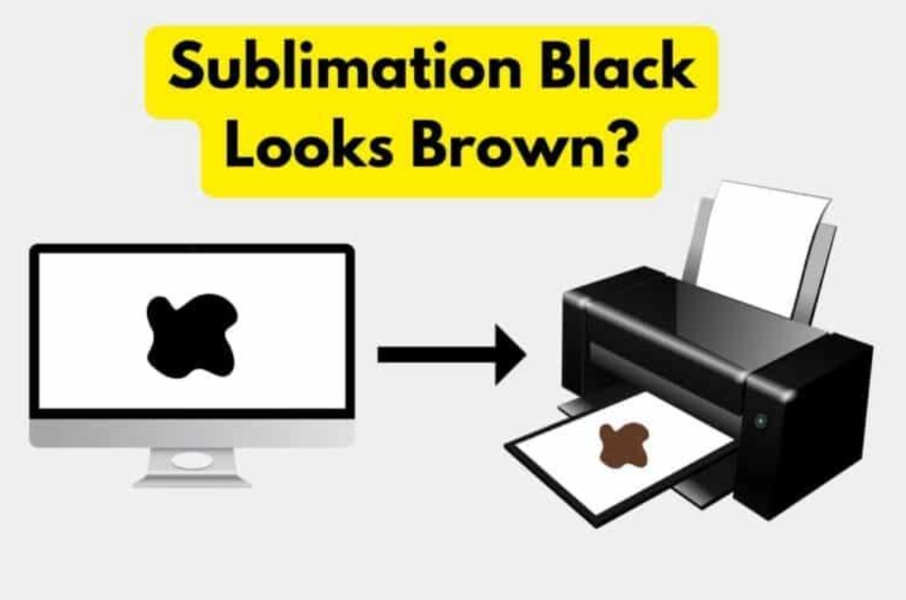
1. Why Does Black Sublimation Ink Look Brown? 6 Core Causes
These causes often overlap and can produce similar symptoms, making troubleshooting a step-by-step process rather than a single-check solution.
1.1 Heat Is Too High or Too Low (Most common cause)
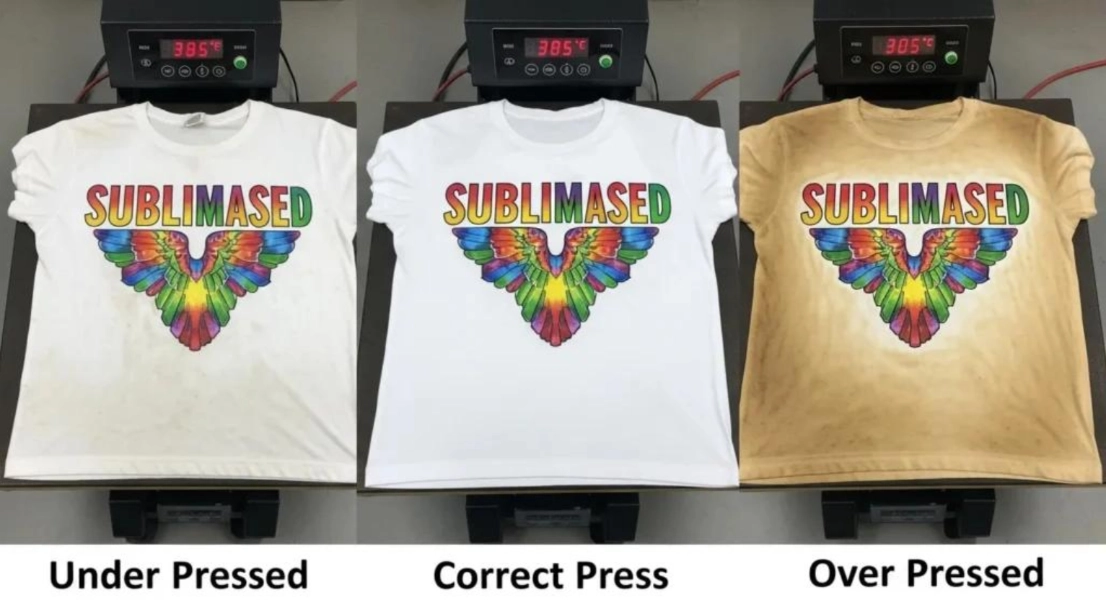
One of the biggest reasons black sublimation ink turns brown is incorrect heat press settings. When the temperature is too high, black ink breaks down into CMY components, which creates a brown or reddish tone. If the temperature is too low, the ink does not fully transfer and appears dull or gray-brown.
According to established sublimation printing troubleshooting practices used across printer manufacturers and industry guides, overheating is one of the most common causes of color shift in sublimation printing.
A user from Reddit was printing large black logos on ceramic mugs but kept getting a brown, “burnt” look instead of a deep black. The issue was most noticeable in solid black areas, while other colors looked normal.
This is a common sign of overheating during mug pressing. When the temperature is too high or the press time is too long, the black sublimation ink can break down and shift into a brown or reddish tone. In this case, lowering the temperature slightly helped restore a deeper, more stable black.
1.2 Incorrect ICC Profile or Poor Color Management Setup
Another common reason is wrong ICC profile settings. ICC profiles control how colors are translated from screen to printer. If the profile does not match your ink or paper, black can shift into brown, green, or dull gray.
ICC profiles are widely recognized in industry-standard color management practices as a key factor in achieving accurate color output in sublimation printing.
A user with a modified Epson WF-7210 printer reported that black prints come out brown. They tried adjusting temperature, time, and pressure, but nothing fixed the issue. The user is using Printer’s Jack ink, which only provides a “generic” ICC profile. They also tested profiles from a similar WF-7710 model and even other brands, with no success.
The correct solution is to contact the ink supplier for a custom ICC profile for their specific ink and paper, or pay for a custom profile. Color issues like this cannot be solved by changing heat or pressure alone.
1.3 Ink CMY Imbalance or Poor Ink Quality Issues
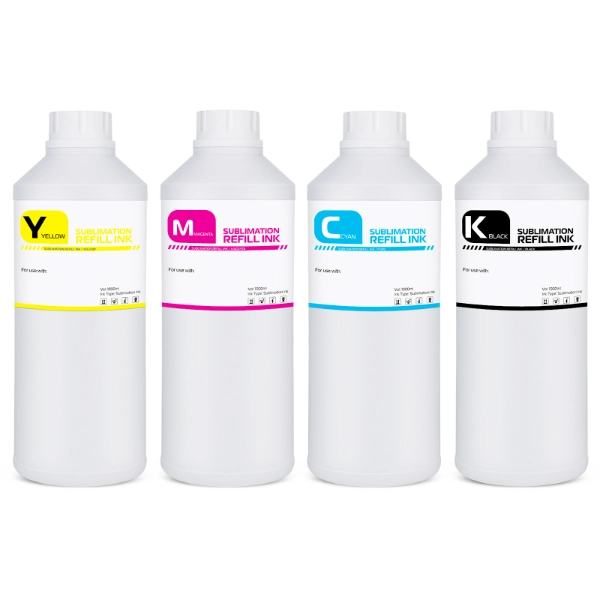
Sublimation black ink is not pure black. It is made from a mix of cyan, magenta, and yellow (CMY). If the balance is not stable, the result can shift to brown or red tones after heating.
Low-quality ink systems often have unstable pigment ratios, which lead to inconsistent output across batches.
A user on the USCutter forum reported that their black sublimation ink had always printed correctly but suddenly started turning brown, even though no settings were changed. This strongly suggests an ink-related issue, such as batch inconsistency or a shift in CMY balance.
Start by checking whether the current ink batch is stable and contacting the supplier. Next, confirm the printer was fully cleaned if it was previously used with regular ink. It is also important to use a stable ink system with a matching ICC profile. If the problem continues, switching to a reliable ink brand is recommended.
1.4 Material or Coating Problems Affecting Color Output
Even if your ink and printer are correct, poor materials can still cause black to turn brown. Sublimation only works well on polyester or polymer-coated surfaces. If the coating is uneven, the ink cannot fully bond, leading to faded or brownish results.
According to industry guidelines and common sublimation best practices, fabrics with at least 65% polyester are recommended for consistent and vibrant results.
A user printed a black design onto cotton socks using a polyester coating. Right after pressing, the black looked clear and normal. However, after just one wash the next day, the black turned completely brown.
This happened because cotton does not naturally bond with sublimation ink, and the coating is less durable than real polyester. Over time, the coating can wear off, causing color fading and shifting. The best solution is to use high-polyester fabrics (over 95%) or switch to other methods like DTG for cotton products.
1.5 Printer Nozzle Clogging or Missing Colors
When printer nozzles are partially clogged, certain colors like cyan or magenta may not print correctly. Since black is a combination of all CMY colors, missing one channel can shift black into brown or green. This is a very common issue with sublimation conversions.
A user on a sublimation forum reported that their black prints suddenly turned brown without any changes in settings. In the discussion, other users suggested that clogged print heads or inconsistent ink flow could be a possible cause, and recommended performing a print head cleaning as part of basic maintenance troubleshooting.
In many cases, running one or two head cleaning cycles and reprinting a nozzle check can resolve the issue.
1.6 Misunderstanding “Ink Looks Brown in Bottle.”
Many beginners worry when they see black sublimation ink looking slightly brown in the bottle. They often think the ink is defective or expired. However, this is usually normal. Sublimation ink is dye-based, and its appearance can change depending on lighting, formulation, and even how it is stored. The bottle color does not reflect how the ink will perform during printing.
Users in sublimation communities often ask whether brown-looking ink means poor quality. Experienced printers consistently explain that dye-based inks naturally vary in appearance, and different batches or brands may look slightly different even when they work correctly. What matters most is not the color inside the bottle, but the final transferred result on the substrate after heat pressing.
In real printing practice, many users confirm that ink that looks “off” in the bottle can still produce stable and accurate black tones when used with the correct ICC profile, printer settings, and materials.
2. Why Sublimation Ink Black Looks Brown Before, During, and After Printing
| Stage | Symptom | Likely Cause | Priority Fix Order |
|---|---|---|---|
| Before printing | Ink looks brown in the bottle | Normal dye-based ink variation | No action needed → run test print |
| During printing | Black looks brown on paper | ICC profile mismatch or CMYK imbalance | 1. Check ICC profile → 2. Check color mode → 3. Reprint test |
| After pressing | Final output turns brown | Overheating, over-pressing, or substrate coating issue | 1. Reduce temperature/time → 2. Check substrate → 3. Verify ink stability |
This breakdown helps you quickly see whether the problem is related to color management (ICC profile), heat transfer (temperature/time), or material quality (coating/polyester content).
3. How to Fix Black Sublimation Ink Turning Brown
Now that we understand the main causes behind black turning brown in sublimation printing, the next step is fixing the problem in a practical way. Each solution below addresses a specific root cause from the causes section above.
These fixes follow the same troubleshooting logic used by experienced sublimation users: start with heat, then color management, then printer health, then materials and ink system.
3.1 Optimize heat press settings
One of the fastest ways to fix brown or reddish black is to adjust the heat press settings. Many users apply too much heat or press for too long, which causes black ink to break down and shift into brown tones.
For example, mug printing often shows “burnt brown” edges when the temperature is slightly too high or the dwell time is extended. Start by lowering the temperature by 5–10°F and reducing press time slightly. Small adjustments often restore deep black tones quickly.
3.2 Use the correct ICC profile
ICC profile issues are a major cause of black turning brown during printing. The ICC profile controls how your design colors are translated into printer output. If the profile does not match your specific ink and paper combination, black can shift into brown or dull gray even before pressing.
Users printing with converted Epson printers often see inconsistent black output when using generic profiles. Always use a profile matched to your ink, printer, and paper setup for stable results.
3.3 Maintain printer health
Printer maintenance is often overlooked, but it has a direct impact on color accuracy. When print heads are partially clogged, some ink channels may not fire correctly, especially cyan or magenta. Since black is created using a mix of CMY inks, missing channels can shift black into brown or green tones.
Users often report sudden brown output that disappears after a simple print head cleaning. Regular nozzle checks and cleaning cycles help keep ink flow stable and colors consistent.
3.4 Use a stable sublimation ink system
Ink quality plays a key role in preventing color shifts. Low-quality or unstable ink systems may have uneven CMY ratios, causing black to turn brown after heating. This is especially common in bulk printing environments where consistent branding colors are required.
Users switching between ink brands often notice color changes even with the same settings. To avoid this, always use a stable ink system and avoid mixing different brands. Consistency in ink chemistry ensures more reliable black output.
3.5 Choose proper substrates
Even with correct settings and ink, poor materials can still cause black to turn brown. Sublimation only works properly on polyester or polymer-coated surfaces. If the coating is weak or uneven, the ink cannot fully bond, leading to faded or brownish results.
For example, T-shirt sellers often report that designs look perfect before pressing but turn brown on low-quality polyester blends. Using high-polyester fabric (at least 65%, preferably higher) or properly coated blanks ensures stable and deep black results.
Conclusion
Black is one of the most sensitive colors in sublimation printing. It requires a precise balance of CMY color channels, heat control, and material compatibility. When any part of the system is unstable—temperature, ICC profiles, ink balance, or substrate quality—black is often the first color to shift into brown or reddish tones. In most cases, this is a system-level issue, not a single-factor problem.
Winnerjet provides complete sublimation printing solutions focused on system stability and consistent color. We don’t just supply ink—we support your entire workflow with stable ink systems, guidance on printer settings, and ICC profile support. This integrated approach helps users avoid problems such as black turning brown and ensures reliable output in small businesses and production environments.
Read More: Why Does My Black Sublimation Ink Look Green? Complete Fix Guide
FAQ Black Sublimation Ink
Why does my black sublimation ink come out striped?
Striped or banded black prints are usually caused by partial nozzle clogging or inconsistent ink flow. When some print head nozzles are blocked, CMY channels cannot blend evenly, creating visible stripes. Running a nozzle check and print head cleaning often resolves this issue.
Why is my black sublimation turning red?
Black turning red or reddish is commonly caused by overheating or incorrect ICC profiles. Excess heat can break CMY balance, while poor color management shifts black tones during conversion. Slightly lowering the temperature and using a matched ICC profile usually restores neutral black output.
Why does my sublimation look faded?
Faded sublimation prints are often caused by low heat, short press time, or poor material compatibility. If the polyester content is low or the temperature is insufficient, the ink cannot fully gas and bond. Increasing time/temperature and using properly coated substrates usually improves vibrancy.