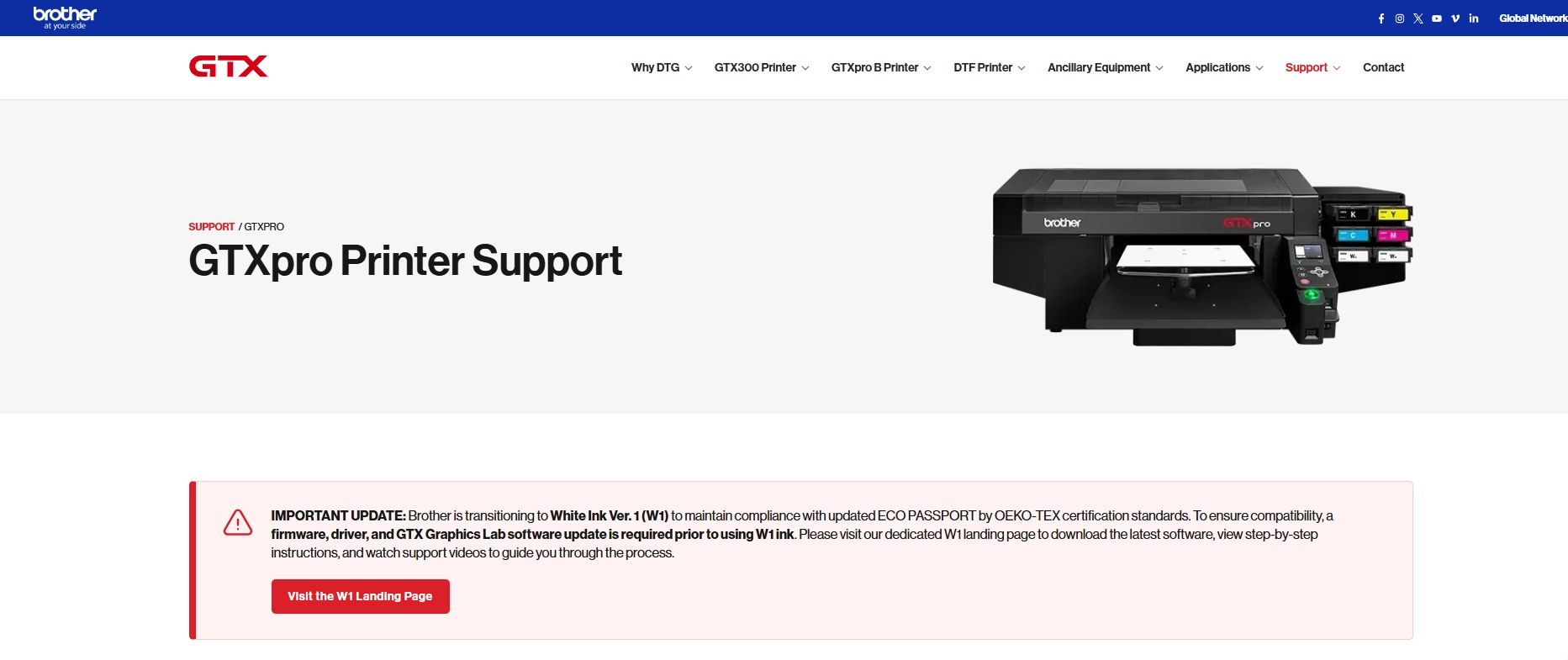
Brother recently announced an update for the Brother GTX and GTXpro direct-to-garment (DTG) printer lineup. The manufacturer is transitioning to its new White Ink Ver. 1 (W1) to comply with updated ECO PASSPORT by OEKO-TEX certification standards.
To run this new OEM ink formulation, Brother requires operators to update three elements:
- Printer Firmware
- Printer Driver
- Brother GTX Graphics Lab Software
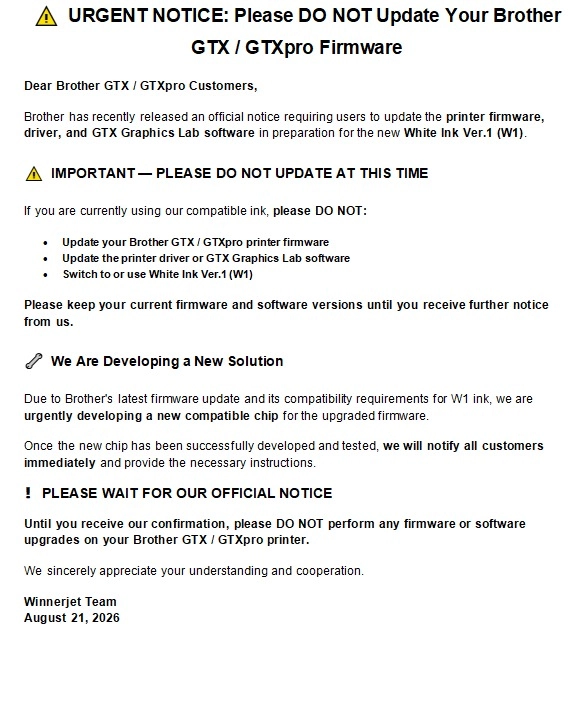
However, if your printing workshop is using Winnerjet compatible inks or a bulk ink supply system, blindly upgrading the firmware could lead to equipment downtime and production interruptions. Please await notification from the Winnerjet team; below are our reminders and recommended solutions.
Why Is Brother Releasing This Firmware Update?
The release is designed specifically to support Brother’s new W1 White Ink formulation. The updated firmware and software contain revised jetting waveforms, maintenance cycles, and updated cartridge recognition protocols tailored exclusively for the W1 ink release.
The Risk for Compatible Ink Users: Why You Should Pause the Update
Printer manufacturers frequently update cartridge encryption algorithms alongside firmware revisions. When you update your Brother GTX or GTXpro firmware:
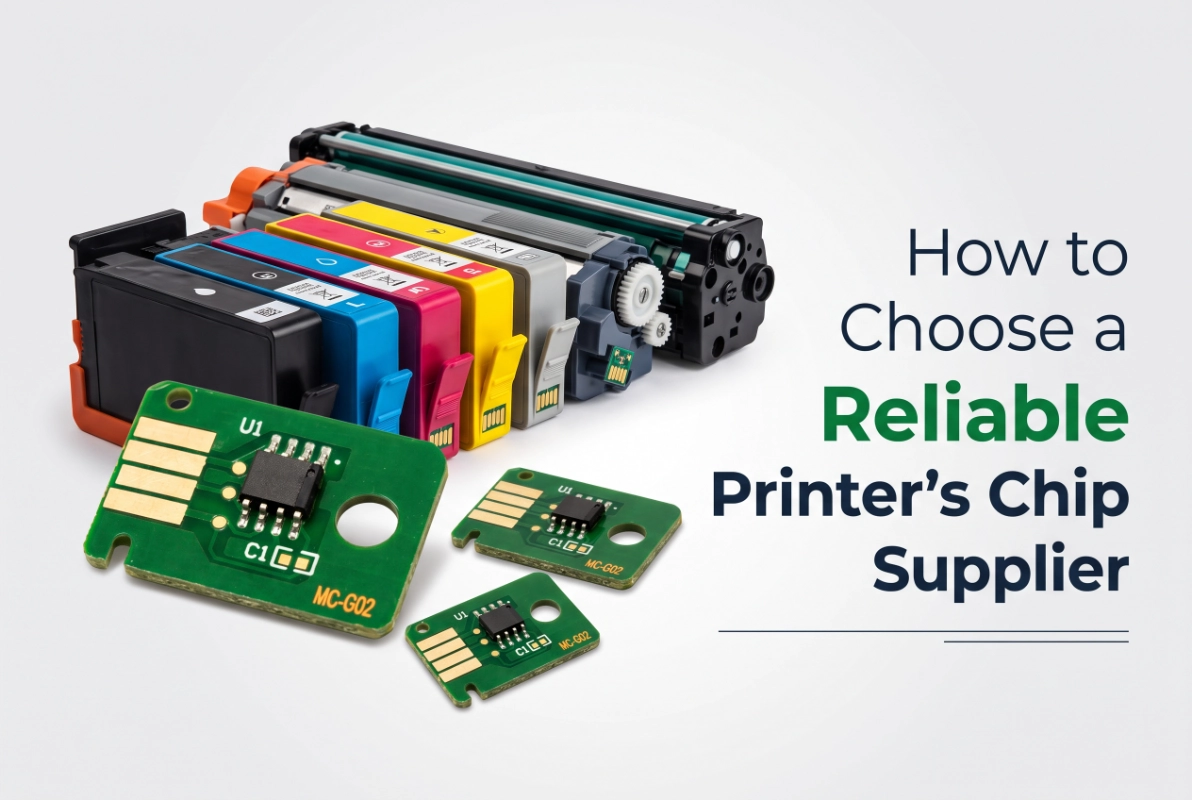
Chip Lockout: Existing third-party cartridge microchips may no longer be recognized by the updated firmware.
Operational Downtime: If your printer rejects the current ink cartridges due to unrecognized chip data, your equipment cannot print until a compatible chip solution is installed.
Irreversible Changes: In most industrial DTG printers, reverting to a previous firmware version is technically difficult or fully blocked by the system.
Recommended Response Procedures from the Winnerjet Team
To ensure the continuous and stable operation of the production line, the Winnerjet team recommends that printing workshops follow these steps:
1. Disable Automatic Updates
Check your connected PC and workstation settings. Ensure that automatic driver updates and Brother background utility update notifications are turned off so your system does not update the firmware in the background.
2. Keep Your Current Firmware & Software Versions
Continue operating with your existing stable setup:
- Retain your current Brother GTX / GTXpro firmware.
- Keep your current printer driver and GTX Graphics Lab software version.
- Avoid installing OEM White Ink Ver.1 (W1) cartridges on machines configured for standard compatible inks.
3. Await Next-Generation Compatible Chips
Due to a recent firmware update from the manufacturer and its compatibility requirements regarding W1 ink, we are urgently developing new compatible chips designed for the updated firmware. We will notify all customers immediately once the new chips have been successfully developed and tested, and we will provide the necessary operating instructions.
Please wait patiently for our official notification
Do not perform any firmware or software upgrades on your Brother GTX/GTXpro printer until you have received confirmation from us.